
Set it up once. Start every project ahead.
The first project of a new kind takes hours to set up. The next hundred shouldn't. Templates capture your fields, budgets and workflows once, so every new project opens ready to go.
Build once, then let project types do the work
Build it once
Create a template in Settings — a set of fields, a starting budget, or a full task workflow.
Assign to project types
Attach it to the project types it fits — Residential, Hospitality, Commercial, or your own.
Pick a default
Choose one default template per type, so every type resolves to a sensible starting point.
Start ahead
New projects of that type open pre-filled — no blank pages, no copy-paste from the last job.
Everything a new project needs
Project Info templates
Capture the brief, consistently.
- Build sections of custom fields — text, number, date, dropdown, yes/no
- Mark fields required, link them to the budget or client, or show them to clients
- Set a completion gate so a project only goes active once the brief is filled in
Budget templates
A starting budget in one click.
- Whole-budget templates (e.g. “Full-Service Residential”) or room packs you append as the project grows
- Carries line items, your column layout and table groupings
- Pre-fills rooms, categories and estimated prices so nothing gets forgotten
Task templates
Your process, every time.
- Phases (groups) of tasks with subtasks, default status and priority
- Relative scheduling — offsets and durations seed a timeline from the project start date
- Run the same proven workflow across every project type
Visual builders, no spreadsheets
Each template type has its own visual builder in Settings. Lay out fields, line items and task phases the way you want them — then save and reuse.
Budget template builder
Task template builder
Task template builder — phases of tasks with subtasks and scheduling
/public/feature-screens/templates/task-template-builder.png/public/feature-screens/templates/task-template-builder-dark.pngSuggested 1600 × 1000 · light + dark
Project info template builder
Project info template builder — sections and custom fields
/public/feature-screens/templates/project-info-builder.png/public/feature-screens/templates/project-info-builder-dark.pngSuggested 1600 × 1000 · light + dark
Personalize the whole experience
Templates are just the start. Settings let you tune the defaults your studio runs on — so BreeStudio fits your process, not the other way around.
Appearance
Light or dark theme and a look that suits how you work.
Budget defaults
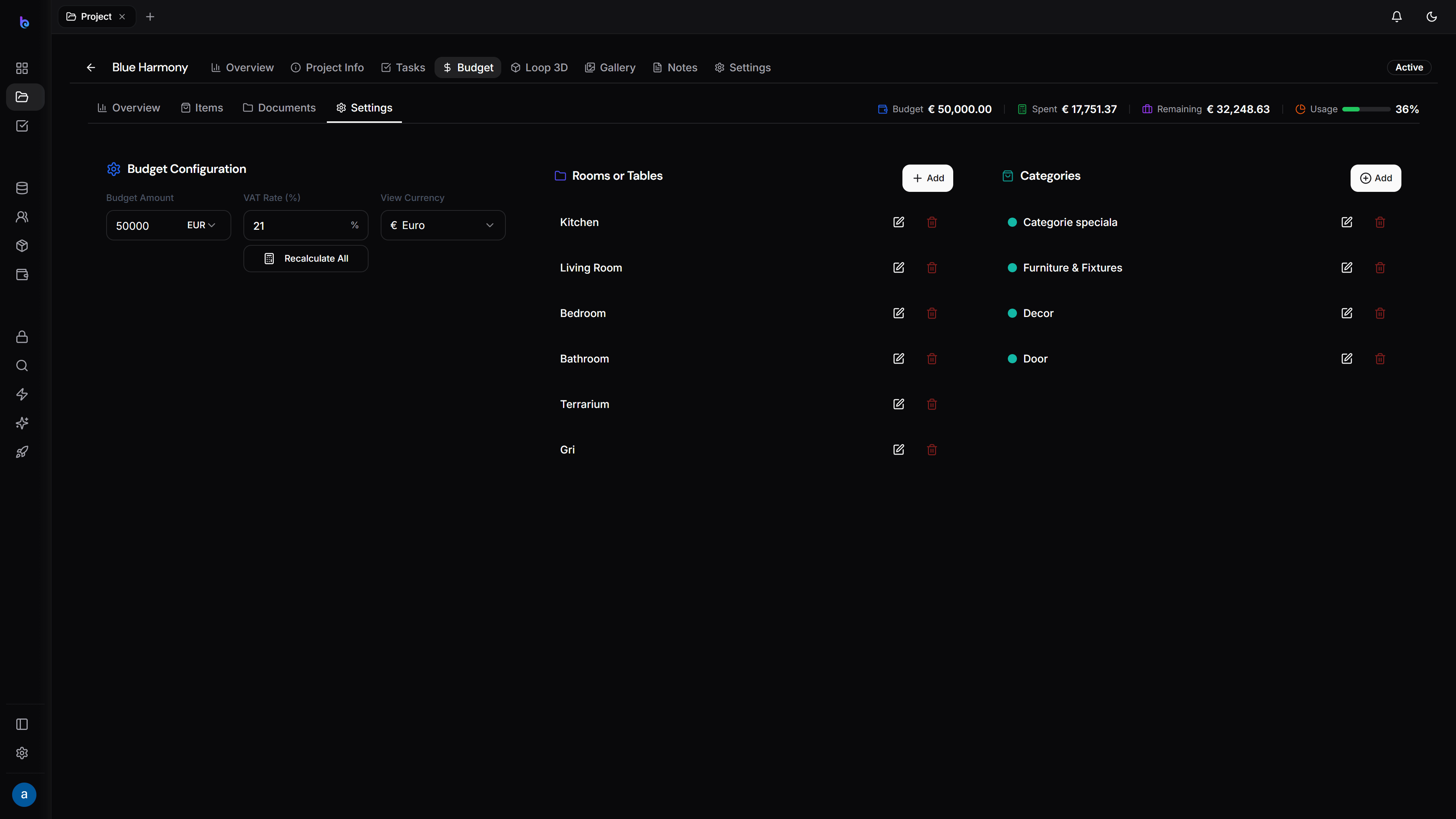
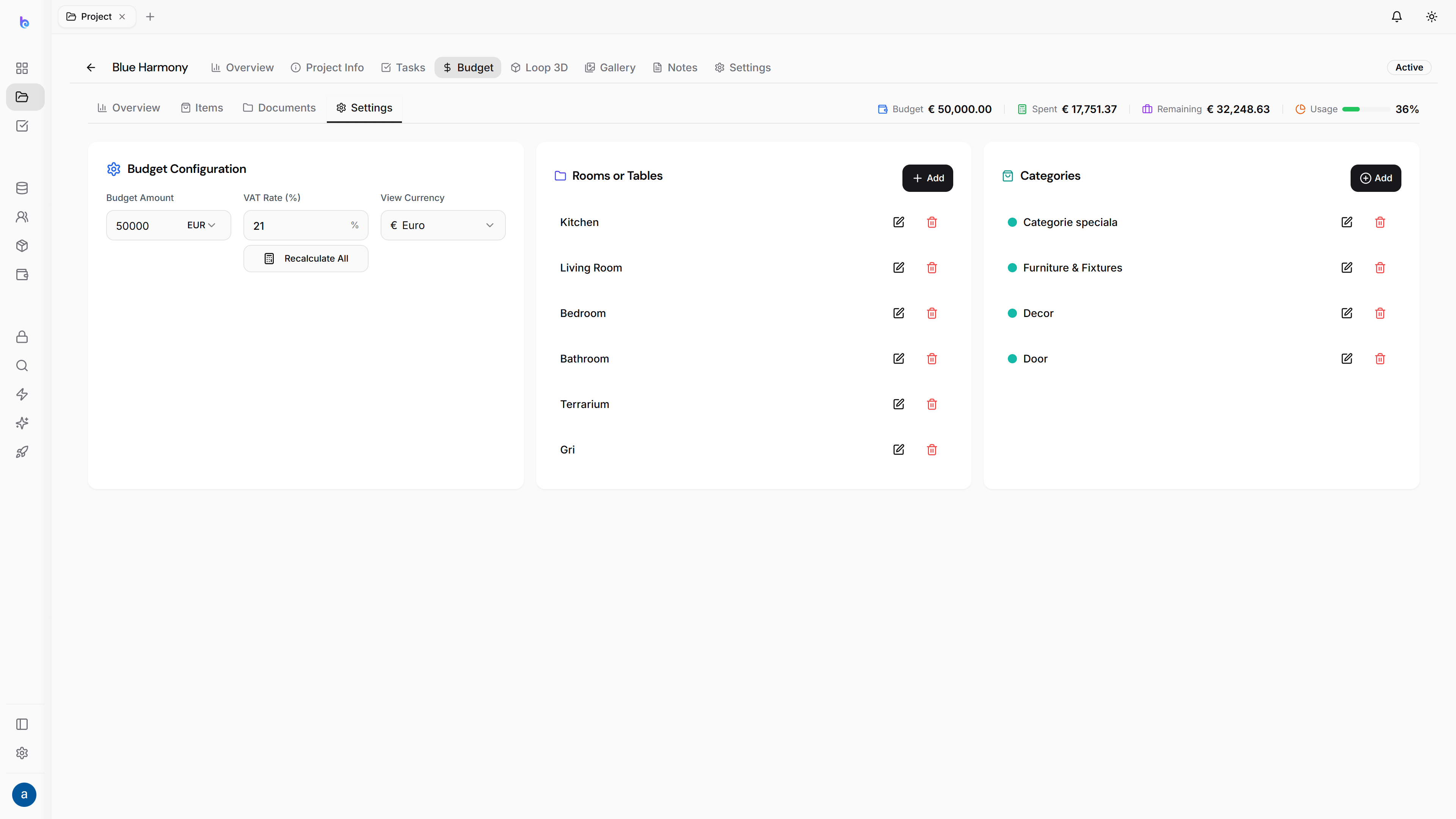
VAT rates, currency, markup, contingency, categories, units and custom columns.
Project types & rooms
Define the project types you take on and the rooms each one typically includes.
Project defaults
The defaults new projects inherit, so setup is consistent across the studio.
Notifications
Choose what you and your team get pinged about — and what you don’t.
Studio & branding
Your studio name, logo and brand — see the White-Label page for the full picture.